
Connect your lock in its app, enable its Alexa Skill, then discover devices.
Smart home security should feel simple, safe, and fast. If you’re wondering how to connect smart door lock with Alexa, you’re in the right place. I’ve set up dozens of locks for clients and in my own home, and I’ll walk you through every path that works today. You’ll get clear steps, pro tips, and fixes that help you connect once and enjoy it every day.

What you need before you start
Before you learn how to connect smart door lock with Alexa, check these basics so your setup is smooth and secure. A few minutes of prep will save you from common hiccups later.
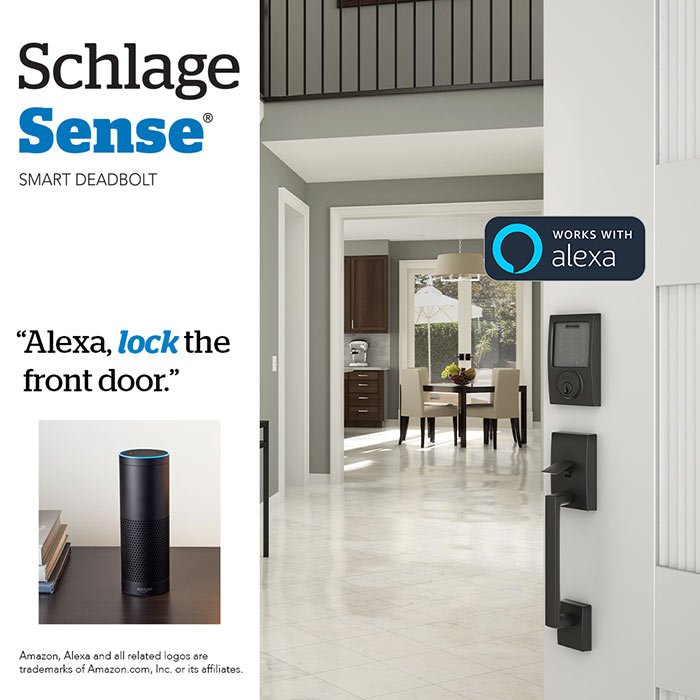
- A compatible smart lock. Popular options include Schlage Encode, August Wi‑Fi, Yale Assure, Level, and Ultraloq.
- The lock’s app installed and an account created. Keep your login handy and enable two-factor authentication.
- A stable 2.4 GHz Wi‑Fi network for Wi‑Fi locks. Many locks do not support 5 GHz.
- Fresh lock batteries. Low batteries cause failed pairing and delayed responses.
- The Alexa app on your phone. Sign in with the same Amazon account used on your Echo devices.
- A supported Echo device. Echo 4th Gen and Echo Show 10 can pair some Zigbee locks directly. Newer Echos also support Matter for some locks.
- Optional hub if needed. Z‑Wave locks need a hub like SmartThings or Hubitat to work with Alexa.
Step-by-step: how to connect smart door lock with Alexa
Here is how to connect smart door lock with Alexa in clear steps. The exact flow depends on your lock type: Wi‑Fi, Zigbee, Z‑Wave (with hub), or Matter.

- Set up the lock in its own app
This is the foundation of how to connect smart door lock with Alexa.
- Install the lock, then follow the manufacturer’s app to add it.
- Update the lock’s firmware. This fixes bugs and speeds up voice control.
- Confirm you can lock and unlock from the lock’s app.
- Name the lock clearly
- Use a short, natural name like Front Door or Back Door.
- Avoid duplicates like two devices both named Door.
- Path A: Wi‑Fi or cloud-to-cloud locks
This is the most common method and the key step in how to connect smart door lock with Alexa.
- Open the Alexa app.
- Tap More, then Skills & Games.
- Search for your lock brand and select its Skill.
- Tap Enable to Use, then sign in to link accounts.
- Approve permissions, then close the screen to trigger device discovery.
- When prompted, tap Discover Devices if it does not start on its own.
- Path B: Zigbee locks with a supported Echo
- Put the lock in pairing mode per its manual.
- Open the Alexa app > Devices > + > Add Device > Lock.
- Choose your brand or select Other if prompted.
- Alexa will pair the Zigbee lock directly with your Echo.
- Path C: Z‑Wave locks via a third-party hub
You are still following how to connect smart door lock with Alexa, just through a hub.
- Add the lock to your Z‑Wave hub using the hub’s app.
- In the Alexa app, enable the hub’s Alexa Skill.
- Link accounts and run device discovery. Your lock will appear in Alexa.
- Path D: Matter-enabled locks
- In the Alexa app, go to Devices > + > Add Device > Matter.
- Scan the lock’s Matter QR code and follow the prompts.
- Finish discovery and name the lock.
- Enable voice unlock (optional but common)
By default, Alexa locks doors without a code. Unlocking by voice needs a code.
- In the Alexa app, go to Devices > Locks > select your lock > Settings.
- Turn on Unlock by voice.
- Set a secure 4-digit voice code. Do not share it.
- Test from the Alexa app
- In Devices > Locks, tap your lock, then try Lock and Unlock.
- If the app works, voice should work too.
- Test voice commands
- Say, “Alexa, lock the Front Door.”
- Say, “Alexa, is the Front Door locked?”
- Say, “Alexa, unlock the Front Door,” then speak your voice code.
- Tidy up device names and rooms
- Assign the lock to the correct group, like Entryway.
- Shorten long names, which makes voice recognition better.
Test commands and create routines
Once you know how to connect smart door lock with Alexa, it’s time to make it feel natural. Short names, clear phrases, and simple routines turn your lock into a daily habit.
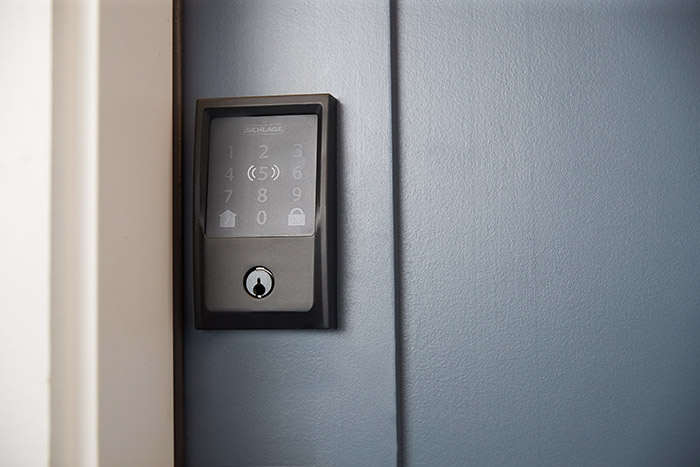
Try these voice commands
- “Alexa, lock the Front Door.”
- “Alexa, is the Front Door locked?”
- “Alexa, unlock the Front Door” + your voice code.
- “Alexa, lock all doors” if you group more than one lock.
Build handy routines
- Goodnight: Lock the door, turn off lights, set a sleep playlist.
- Leaving Home: Lock the door, turn off plugs, arm your security system.
- Auto-Lock Backup: If door is reported unlocked at 10 PM, lock it and send a phone notification.
- Guest Mode: Create a routine phrase like “Alexa, guest check-in” to turn on the porch light and confirm the door status.
Pro tip: Use the lock’s built-in auto-lock feature for safety, then add an Alexa routine as a backup reminder.
Troubleshooting guide
If how to connect smart door lock with Alexa is not working, these quick checks fix most cases in minutes.

- Discovery failed
- Reboot your phone and Echo. Replace lock batteries.
- Ensure the lock works in its own app first.
- For Wi‑Fi locks, confirm 2.4 GHz and strong signal at the door.
- Skill won’t link
- Turn off VPNs. Use the correct login and 2FA code.
- Try disabling and re-enabling the Skill, then rediscover devices.
- Alexa does not hear the device name
- Rename the lock to a short name. Avoid special characters.
- In the Alexa app, remove duplicates or old lock entries.
- Voice unlock not working
- Enable Unlock by voice in the lock’s device settings.
- Recreate your voice code and confirm it by voice.
- Zigbee/Z‑Wave issues
- Move the Echo or hub closer to the door or add a repeater.
- Exclude and re-include the lock if pairing got stuck.
- Matter pairing fails
- Confirm your Echo supports Matter and is updated.
- Factory reset the lock’s Matter module and try again.
Security and privacy best practices
Part of how to connect smart door lock with Alexa is doing it safely. A few small steps protect your home and your data.
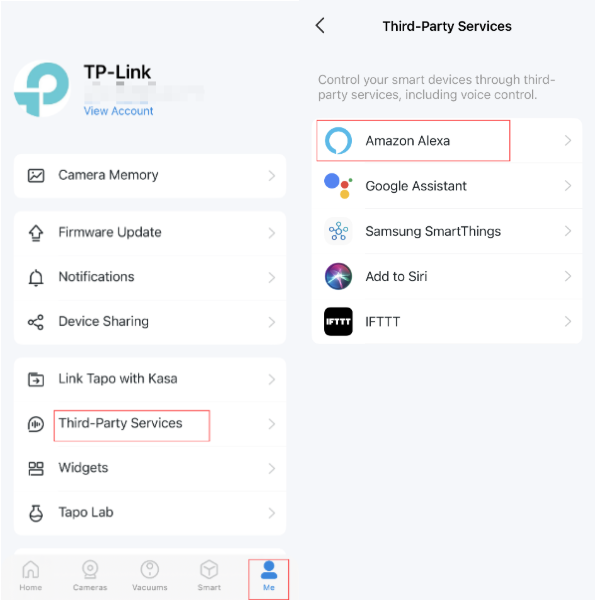
- Use two-factor authentication on both your Amazon and lock accounts.
- Keep your lock firmware and Alexa app updated.
- Do not share your voice unlock code. Change it if guests heard it.
- Limit voice unlock to rooms you control. Avoid placing an Echo near a window or outside.
- Review lock history in the manufacturer’s app to see who unlocked and when.
- Create separate guest access in the lock’s app, not by sharing your main account.
- Regularly review Alexa device permissions under Skills & Games.
Compatibility cheat sheet
Compatibility often decides how to connect smart door lock with Alexa in your home. Here is a quick guide to common paths.

- Wi‑Fi locks
- Many pair by enabling the brand’s Alexa Skill. Fast and simple.
- Zigbee locks
- Pair directly with Echo 4th Gen or Echo Show 10. No extra hub needed.
- Z‑Wave locks
- Need a Z‑Wave hub. Then link the hub’s Alexa Skill.
- Matter locks
- Add via the Matter option in Alexa. Scan the QR code to link.
- Popular brands
- Schlage Encode/Encode Plus, August Wi‑Fi, Yale Assure 2, Level, Ultraloq, Eufy. Method varies; check the brand’s Skill or Matter support first.
Pro tips from hands-on installs
From real installs, here is how to connect smart door lock with Alexa without headaches. These small tips make voice control smooth and reliable.

- Update first, then link. Most pairing issues vanish after a firmware update.
- Name it once, test it twice. I always test with the app before trying voice.
- Keep names simple. Front Door beats Front Entry Door With Deadbolt every time.
- Place your Echo well. I move it a few feet from TVs or speakers to avoid mishears.
- Use a backup routine. I set a 10 PM “Lock Front Door” check as a safety net.
- Teach the household. Everyone should know the voice code and when to use it.
- Check battery alerts. Low batteries show up as slow responses long before failure.
Maintenance and daily use
Daily habits will support how to connect smart door lock with Alexa long term. Treat it like any other smart device you rely on.
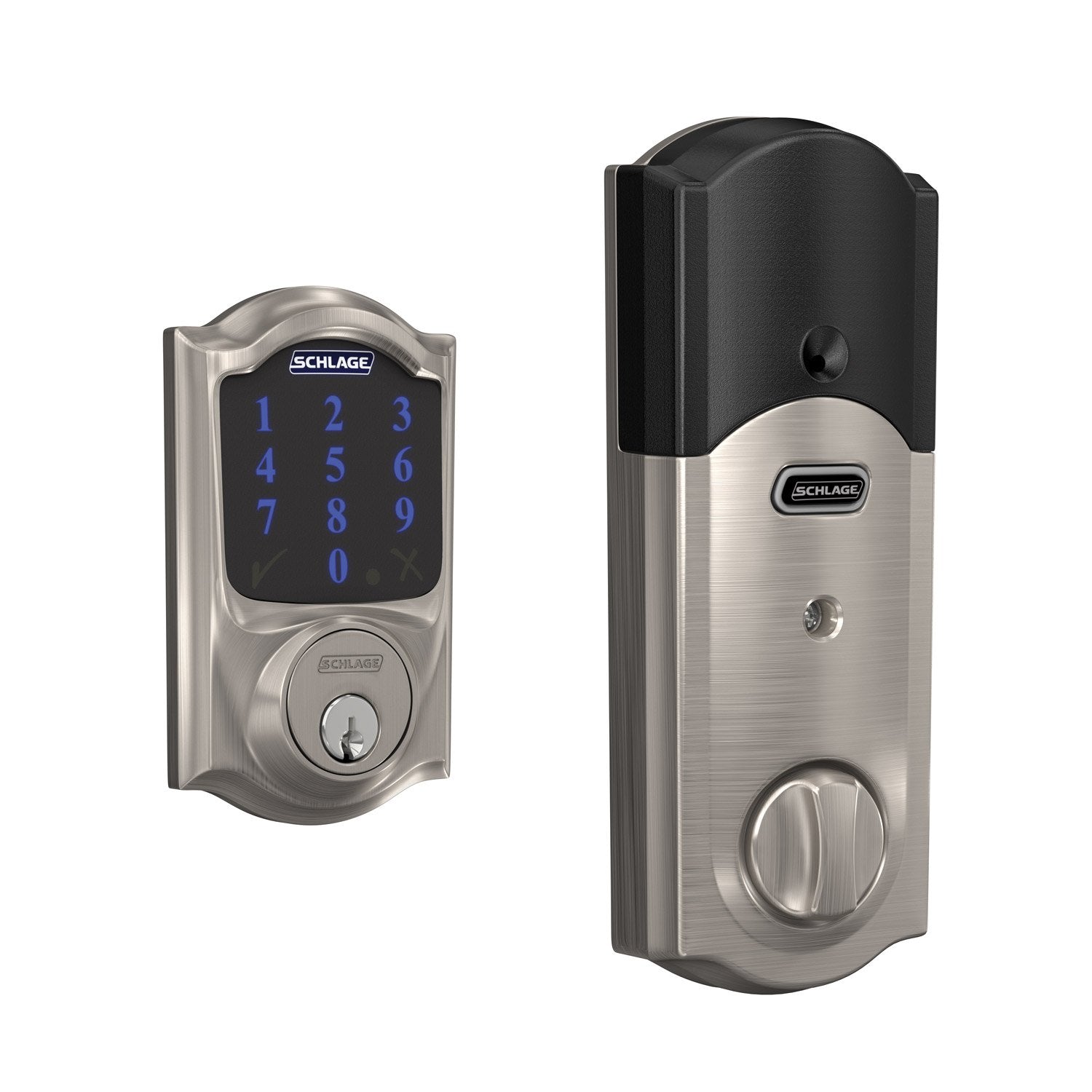
- Replace batteries when the app warns you, not after failures.
- Re-run discovery after major app or firmware updates.
- Review access logs monthly and remove old guest codes.
- Test voice unlock every few weeks to ensure the code still works.
- Keep the strike plate aligned. A sticky latch drains batteries and causes errors.
Frequently Asked Questions of How to connect smart door lock with Alexa
Do I need a hub to use a smart lock with Alexa?
You do not need a hub for most Wi‑Fi locks. Zigbee locks can pair with certain Echo models, while Z‑Wave locks need a compatible hub.
Can Alexa unlock my door by voice?
Yes, but you must enable Unlock by voice and set a voice code in the Alexa app. Without a code, Alexa will only lock the door.
What if my lock only works on 2.4 GHz Wi‑Fi?
That is normal for many locks. Make sure your phone joins the same 2.4 GHz network during setup, then link the Alexa Skill.
How do I fix “Device not responding” in Alexa?
Check battery level, Wi‑Fi signal at the door, and the lock’s app control first. Then reboot the Echo, disable and re-enable the Skill, and rediscover devices.
Can I use routines to lock the door at night?
Yes. Create a Goodnight routine that locks the door at a set time or when you say a phrase. You can also add a push notification for peace of mind.
Is Matter better than using a brand Skill?
Matter can simplify local control and reduce cloud hops. That said, features like access codes may still live in the brand’s app.
What is the fastest way to learn how to connect smart door lock with Alexa?
Set up the lock in its own app first, then link the brand’s Alexa Skill and run device discovery. Test in the Alexa app before trying voice.
Conclusion
You now have a clear path for setup, testing, and safe daily use. From firmware updates to smart routines, each step helps your lock respond fast and keep your home secure. Take five minutes today to link your lock, set a voice code, and try a Goodnight routine.
Ready for the next step? Subscribe for more smart home how-tos, or drop a comment with your lock model and I’ll share a tailored setup plan.