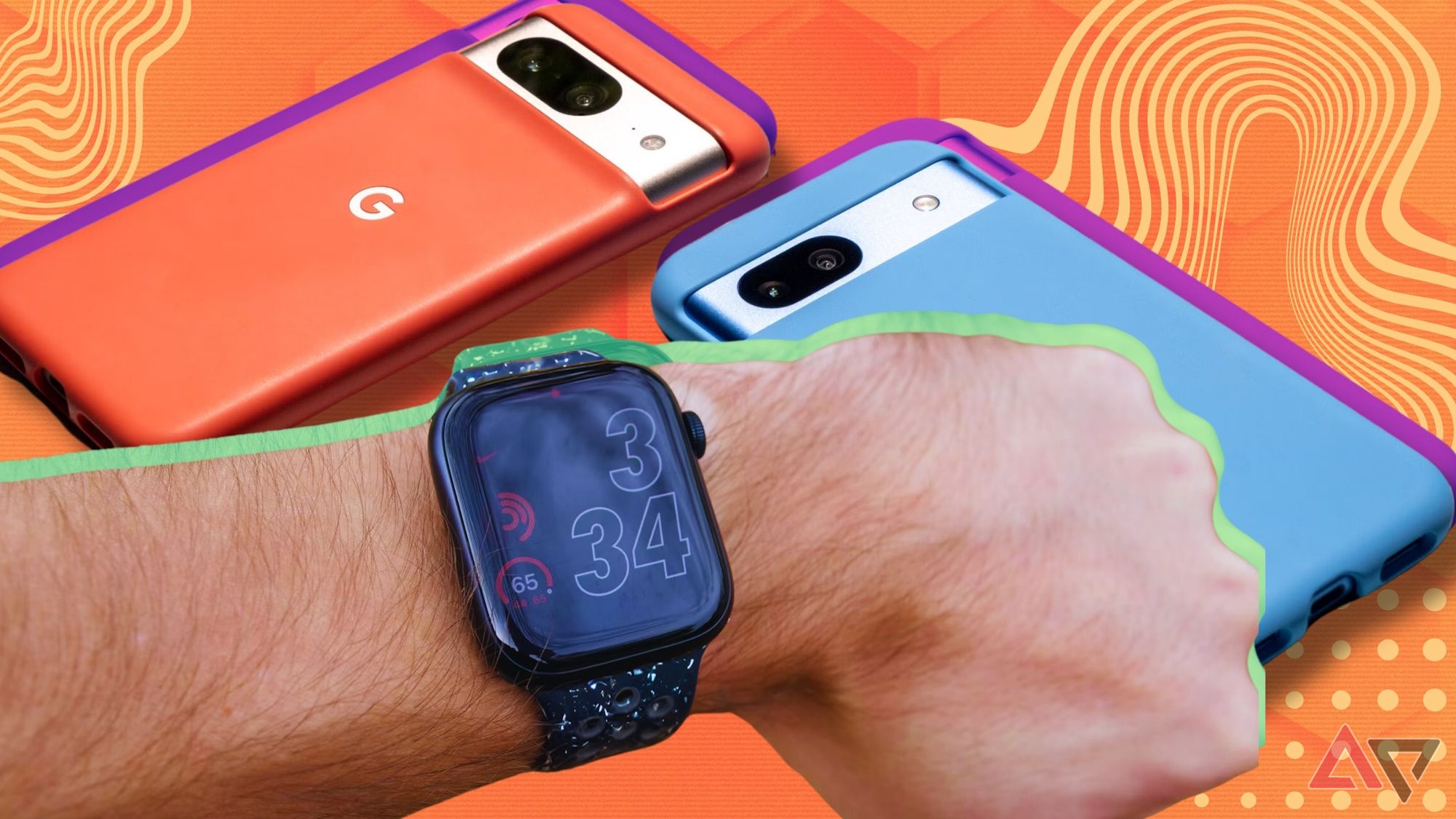
On iPhone or Android, pair in the companion app, allow Health, then calibrate.
You want an easy, reliable way to bring your blood pressure readings to your phone. This guide shows How to sync blood pressure watch with iPhone and Android step by step. I test these devices often, help clients set them up, and know the common snags. Follow along for a clean, simple setup that just works.
.png)
What you need before you start
Make sure your watch can record blood pressure. Many “smart” watches only estimate it. Some do not measure it at all.
Check these basics first:
- A compatible blood pressure watch and its official app
- Bluetooth on and charged devices
- The latest firmware and app updates
- A stable internet connection for backups and cloud sync
- A validated upper-arm cuff for calibration if your watch needs it
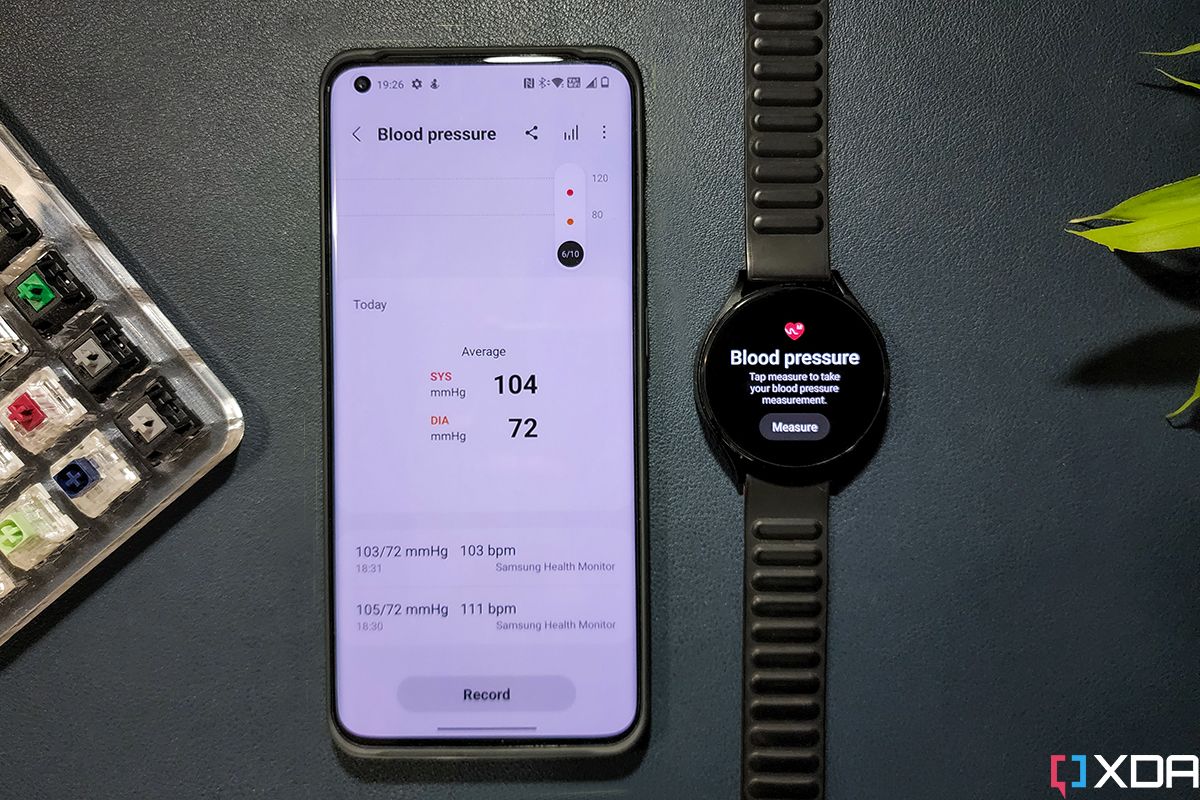
Brands differ. Omron HeartGuide works with iPhone and Android. Samsung Galaxy Watch measures BP only when used with a compatible Samsung phone and the Samsung Health Monitor app. Apple Watch does not measure BP.
If you came here for How to sync blood pressure watch with iPhone and Android, these checks prevent most setup issues.

Step-by-step: Sync a blood pressure watch with iPhone
Here is How to sync blood pressure watch with iPhone in simple steps.
- Install the companion app from the App Store. Examples include Omron Connect, Huawei Health, Zepp, or your watch maker’s app.
- Turn on Bluetooth and Wi‑Fi. Keep the watch close to your iPhone.
- Open the app and create or sign in to your account. Allow Bluetooth and notification access when asked.
- Start pairing from inside the app. Do not pair only from iOS Settings. Follow the on‑screen prompts to connect.
- Grant Health permissions. When asked, allow the app to Read and Write Blood Pressure, Heart Rate, and related data in Apple Health.
- Update firmware if prompted. Keep the watch on the charger during updates.
- Calibrate if your watch requires it. Use a validated upper-arm cuff. Sit still. Take three readings as directed.
- Take a test reading on the watch. Keep your wrist at heart level and relax.
- Open the app to force a sync. Confirm the reading appears in the app and in Apple Health.
- Turn on background app refresh. In iOS Settings, allow background activity and notifications for the app so sync stays steady.
Pro tips from real setups:
- If Health data does not show up, revisit app Health permissions and toggle Blood Pressure off, then on.
- Keep the app signed in. Logging out can stop sync.
- Some brands (like Huawei) do not write BP to Apple Health on iOS. Your data stays inside their app.
This path is the core of How to sync blood pressure watch with iPhone and Android. On iPhone, permissions are key.

Step-by-step: Sync a blood pressure watch with Android
Now let’s tackle How to sync blood pressure watch with iPhone and Android on the Android side.
- Install your watch’s companion app from Google Play.
- Turn on Bluetooth, Wi‑Fi, and Location. Android often needs Location for Bluetooth scanning.
- Open the app. Sign in and accept Bluetooth and nearby device permissions.
- Pair the watch from inside the app. Accept any pairing codes.
- Update firmware if prompted.
- Calibrate with an upper-arm cuff if your watch requires it.
- Take a test reading on the watch.
- Connect to Google Fit if supported. In the app, find Connected Services and link Google Fit so BP can flow to one place.
- Disable battery optimization for the app. Allow background activity so sync does not pause.
- Open the app after a reading to confirm that it synced.
Notes from field work:
- Samsung Galaxy Watch BP needs the Samsung Health Monitor app and a compatible Samsung phone in supported regions. It will not sync BP on iPhone.
- Some apps do not write BP to Google Fit. If you need a bridge, consider a trusted sync tool and review privacy before using it.
These steps reflect the heart of How to sync blood pressure watch with iPhone and Android. On Android, permissions and battery settings matter most.
Brand-specific notes and real-world tips
Brands handle blood pressure in different ways. Here is what to expect.
Samsung Galaxy Watch
- Measures BP only with Samsung Health Monitor on a compatible Samsung phone in supported countries.
- Needs calibration with a cuff every 4 weeks.
- Data lives in Samsung Health; export options vary by region.
Omron HeartGuide
- FDA-cleared wearable BP watch. Works with Omron Connect on iOS and Android.
- Syncs well and can write to Apple Health or Google Fit.
- Best for people who want validated measures on the go.
Huawei Watch D
- Offers wrist BP with cuff-like bladders. Requires Huawei Health.
- iOS support is limited. Apple Health write may not be available.
- On Android, Google Fit sync is inconsistent without bridges.
Other “BP watch” brands
- Many use pulse arrival time estimates. Not medical grade.
- Treat trends as trends. Confirm with a validated cuff.
My take after many client setups: if true BP is your goal and you need iPhone support, Omron HeartGuide is the most direct path. For Android users inside the Samsung world, Galaxy Watch plus Samsung Health Monitor is smooth. This context helps you judge How to sync blood pressure watch with iPhone and Android for your exact device.

Troubleshooting sync issues
Even clean setups can stall. Try these quick fixes.
- Toggle Bluetooth off and on on both devices.
- Force quit and reopen the app. Then open the app before checking for new data.
- Reboot the phone and the watch.
- Update the app, watch firmware, iOS or Android.
- Recheck Health or Google Fit permissions. Ensure Blood Pressure is allowed.
- On Android, remove battery optimization for the app and allow background data.
- Unpair and repair from inside the app if all else fails.
- Recalibrate if readings look off or refuse to sync.
I use this order to solve most cases of How to sync blood pressure watch with iPhone and Android that get stuck.
Privacy, security, and data export
Blood pressure is sensitive health data. Treat it with care.
- Use a strong password and turn on two-factor authentication in your app account.
- Review data-sharing settings. Opt out of marketing or research if you prefer.
- On iPhone, Apple Health lets you export data as a file when needed.
- On Android, Google Fit supports export and third-party backups.
- If you switch apps, delete old accounts or request data deletion.
These steps make How to sync blood pressure watch with iPhone and Android safer for daily use.

Accuracy, calibration, and best practices
Good sync is only useful if the numbers are solid.
- Sit for 5 minutes before each reading. No caffeine, exercise, or smoking for 30 minutes.
- Keep your wrist at heart level. Rest your arm on a table.
- Take two readings, one minute apart. Log the average.
- Calibrate as often as your watch maker advises.
- Compare your watch with a validated upper-arm cuff. Share trends with your clinician.
Remember: wrist devices can drift. Use them for trends and convenience. For medical decisions, use a validated cuff or see your clinician. This is how I frame How to sync blood pressure watch with iPhone and Android in real life: sync well, measure right, and act with care.

Frequently Asked Questions of How to sync blood pressure watch with iPhone and Android
Can Apple Watch measure blood pressure?
No. Apple Watch does not measure blood pressure. It can store BP data from other apps or cuffs in Apple Health.
Which blood pressure watches work best with iPhone?
Omron HeartGuide works well and can sync to Apple Health. Some other brands log BP in their own app but may not write to Apple Health.
How often should I calibrate my blood pressure watch?
Follow the brand’s guidance. Many require calibration every 4 weeks or after firmware updates.
Why is my Android phone not syncing BP in the background?
Battery optimization may be blocking the app. Disable optimization and allow background activity and data.
Can Samsung Galaxy Watch sync blood pressure to an iPhone?
No, not for BP. The Samsung Health Monitor app is required and supports Samsung phones only in supported regions.
Is wrist blood pressure accurate enough for medical use?
It can be close when used well, but it is more variable than an upper-arm cuff. Use it for trends and confirm key readings with a validated cuff.
How do I get my BP into Google Fit or Apple Health?
Grant permissions during setup in your companion app. If your app does not support it, export data or use a trusted bridge tool after reviewing privacy.
Conclusion
You now know How to sync blood pressure watch with iPhone and Android from start to finish. Pick the right device, pair in the app, grant Health or Fit permissions, and calibrate with a trusted cuff. Keep your setup updated and your habits steady for clean trends you can trust.
Take five minutes today to set it up and log your first week of readings. Then share your feedback, ask a question, or subscribe for more smart health guides.